

Looker Studio Connector (Legacy)
Connector last updated: September 14, 2026 — this release fixes a date-handling bug that could stop charts loading, and adds citation, share-of-voice, and rank fields.Already using it? Refresh your data source to pick up the new fields — the steps are the same for this connector, and your existing dashboards keep working exactly as they are.
We recommend moving to the v2 connector. This legacy connector handles one brand per data source. The Data Studio Connector connects 1–30+ brands in a single data source, adds agent traffic, site map, and signals data, and fetches every brand in parallel with smarter caching — noticeably faster once you are running more than one brand. This page stays supported for existing setups.
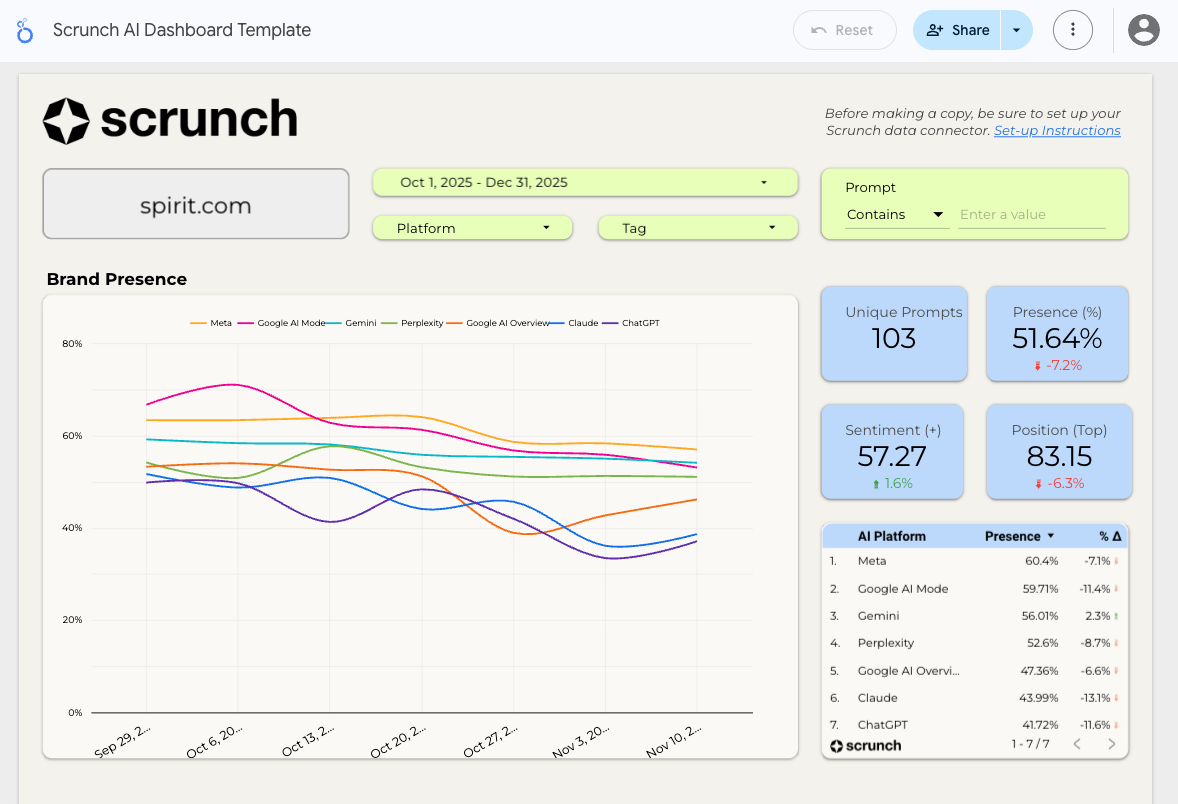
- Brand presence, position, and sentiment
- Competitor presence metrics
- Date, platform, persona, tag, and source dimensions
Install the Scrunch Looker Studio Connector
The connector is not yet in the public gallery. Install it directly using the link below:Install Connector
Open the Scrunch AI Looker Studio Connector
Authenticate With Your Scrunch API Key
During setup, Looker Studio will prompt you for:- Your API key
You can provision a Query-scoped API key from: Scrunch → Organization → Settings → API KeysA single API key may be scoped to one or many brands. Use narrow scoping when integrating with client-facing dashboards.
- Your Brand ID
The connector loads data for one brand at a time. To find your brand ID: Open the brand’s dashboard in Scrunch Look at the URL:https://app.scrunchai.com/org/.../b/1234/dashboardHere, 1234 is your Brand ID.If you need multi-brand dashboards, reach out to Scrunch. We are collecting feedback for expanded multi-brand support.
Supported Dimensions and Metrics
This connector covers a single brand and exposes 65 fields from the Scrunch Query API.Dates (5)
Dates (5)
Prompts & audience (9)
Prompts & audience (9)
AI platform (2)
AI platform (2)
Competitors (3)
Competitors (3)
Cited sources (7)
Cited sources (7)
Where & how you appear (3)
Where & how you appear (3)
Core metrics (12)
Core metrics (12)
Competitor metrics (6)
Competitor metrics (6)
Citation metrics (18)
Citation metrics (18)
Date dimensions cover the last 90 days only. For weekly charts, keep date filters week-aligned.
Using the Scrunch Looker Studio Template
To accelerate setup and reporting, Scrunch provides a pre-built template.1
Open the template
Click the template link.
Scrunch Looker Studio Template
2
Make a copy
In the top-right corner, click the three dots → Make a copy.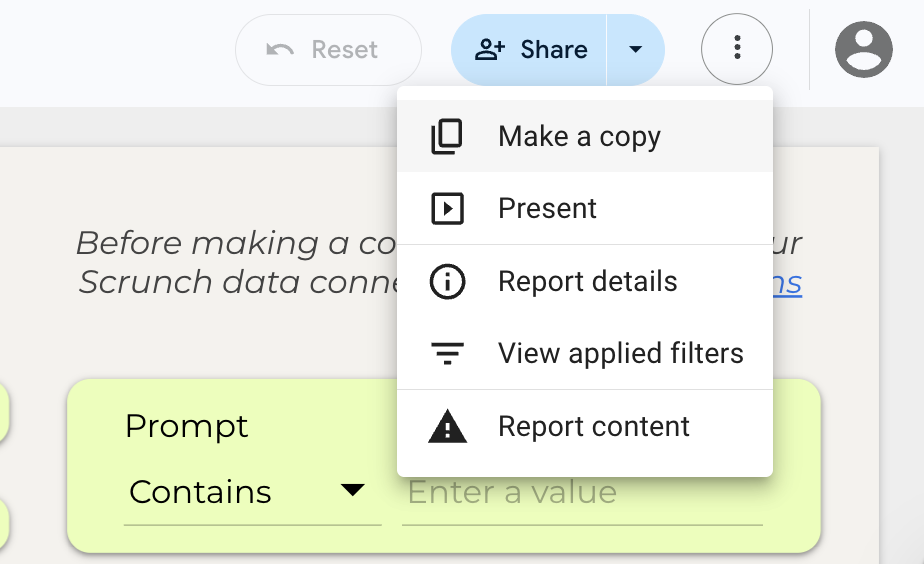
Be sure to install the Scrunch Looker Studio Connector prior to copying.
3
Connect your Scrunch data source
When prompted, select the Scrunch AI Looker Studio connector you configured earlier.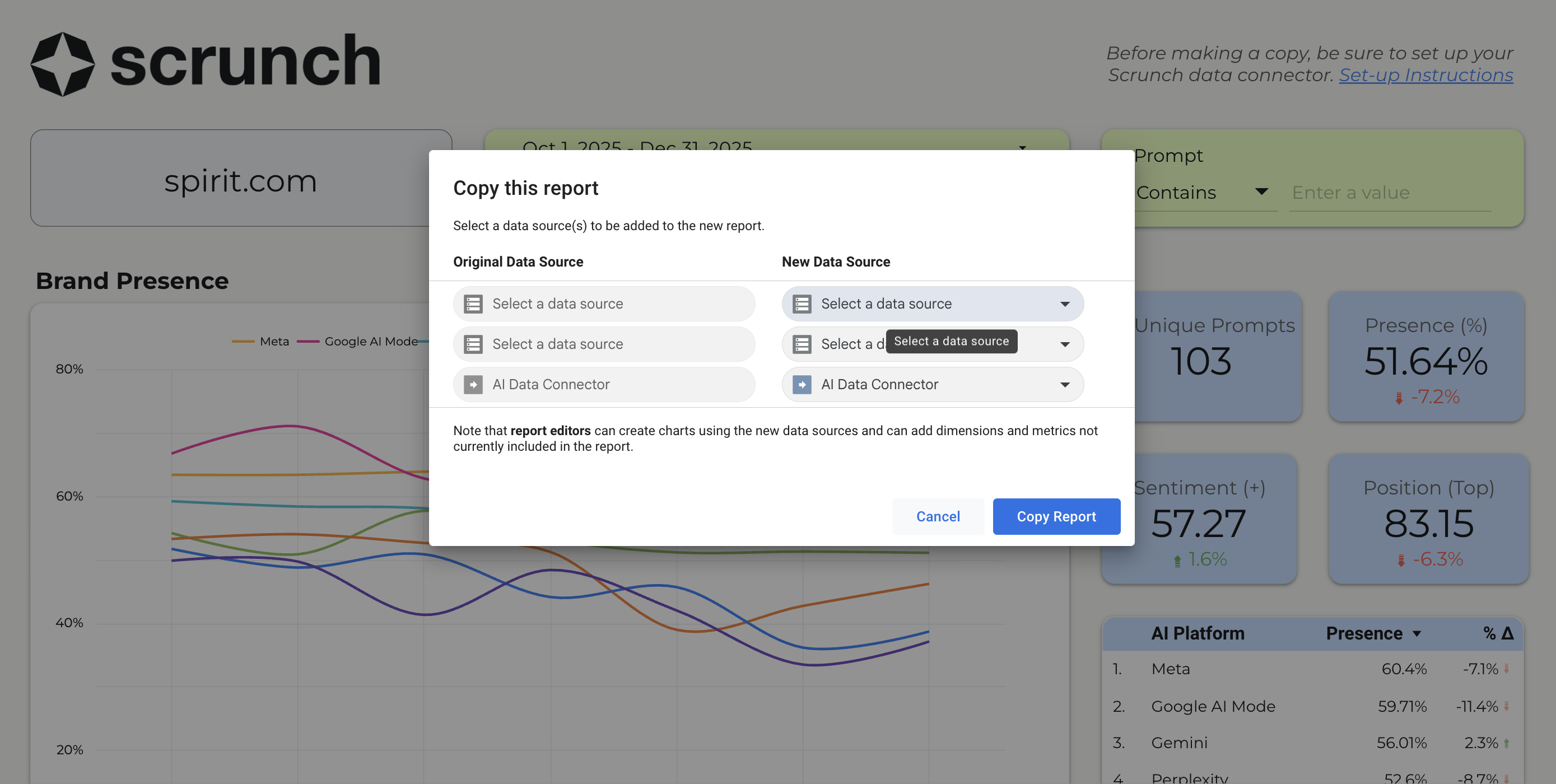
4
Customize your dashboard
You can now modify charts, add filters, or blend additional sources like GA4, CRM data, paid media, and more.
FAQs
How do I compare last week vs. previous week?Create custom metrics inside Looker Studio using conditional date filters. Example:Are there limits to dashboard size?Looker Studio supports calculated fields using functions like:
- Last 7 days
- Same 7 days previous period
- Month-to-date vs prior month-to-date
Yes. Looker Studio allows a maximum of 30 concurrent Community Connector queries. Dashboards with more than ~15 Scrunch-powered charts may hit this limit depending on complexity.How do I recreate the Brand Presence + Competitor Presence chart from the Scrunch dashboard?
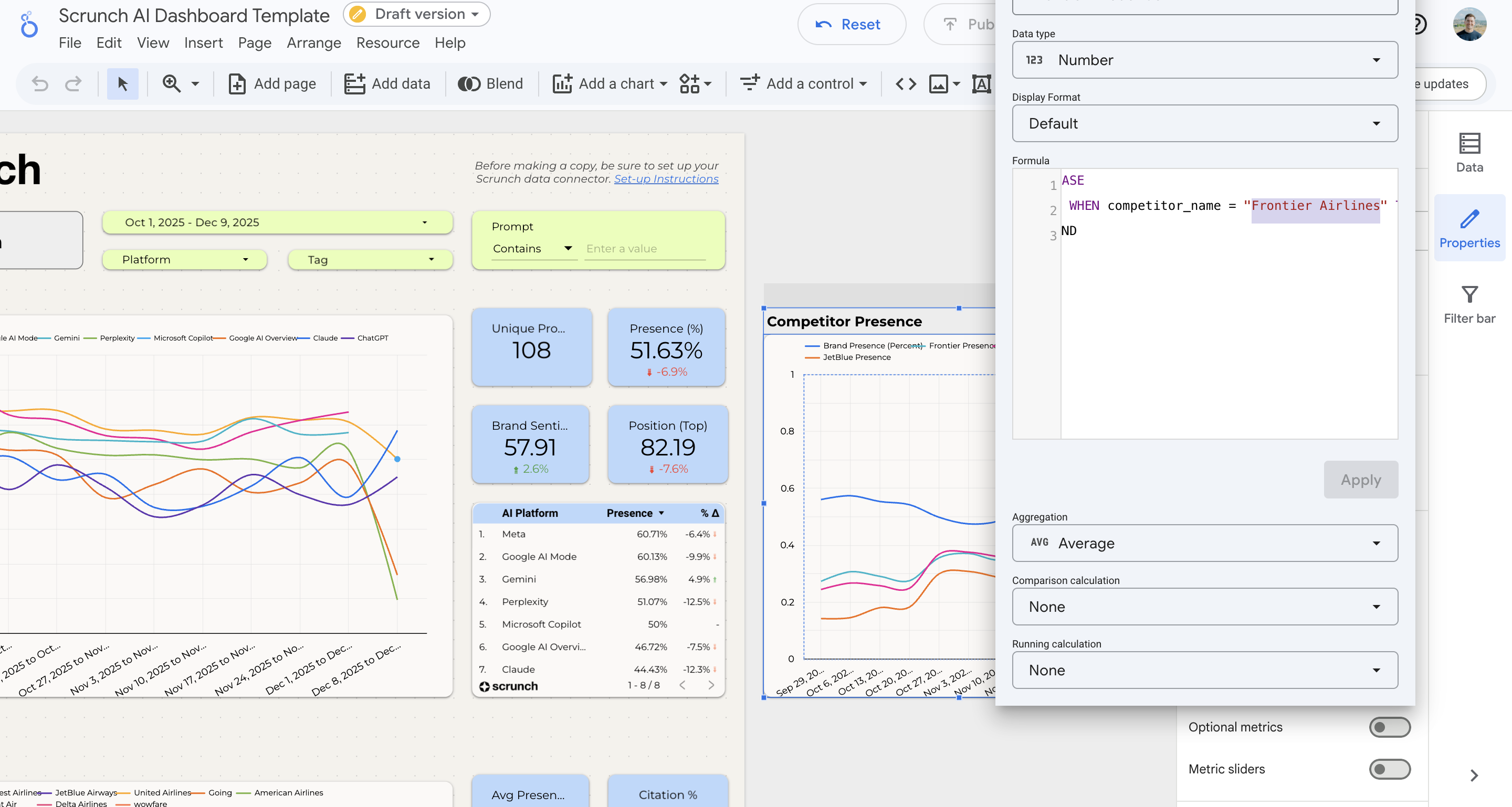
A version of this combined view is already included in the Scrunch Looker Studio template. When you make a copy of the template, zoom out on the canvas—you’ll see a hidden chart that mimics the dual-line Brand vs. Competitor Presence visualization from the Scrunch dashboard. Looker Studio does not natively blend these metrics into a single field, so the chart requires custom-calculated metrics under the hood. Each competitor’s presence must be defined using a conditional formula, such as:To customize the benchmark view for your own competitive set:
- Open the hidden chart in your copied template
- Edit each metric formula
- Replace the competitor names with the ones relevant to your brand
There is no universal “competitive benchmark” metric available from the API. The Looker Studio template replicates this view by combining multiple calculated fields inside one chart.
Resetting Your Connector (If Needed)
If the connector was set up incorrectly, here’s how to completely reset it:1
Open Looker Studio Admin
2
Open Data Sources
Click Data Sources in the top navigation.
3
Remove the Scrunch data source
Find your Scrunch connector → ⋮ → Remove 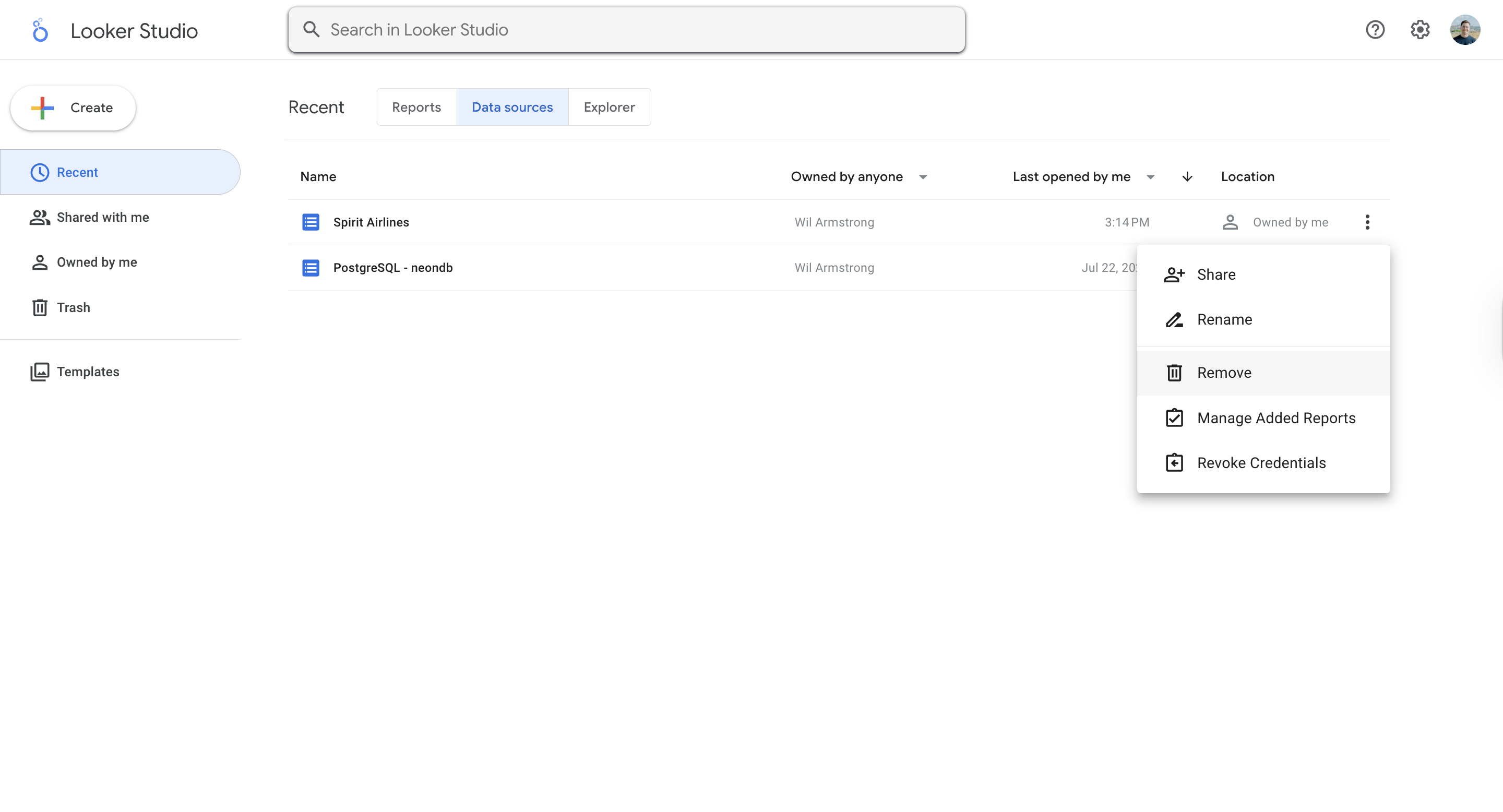
4
Now remove the connector
Click + Create → Data source → Partner Connectors → Scrunch AI. Then ⋮ → Revoke 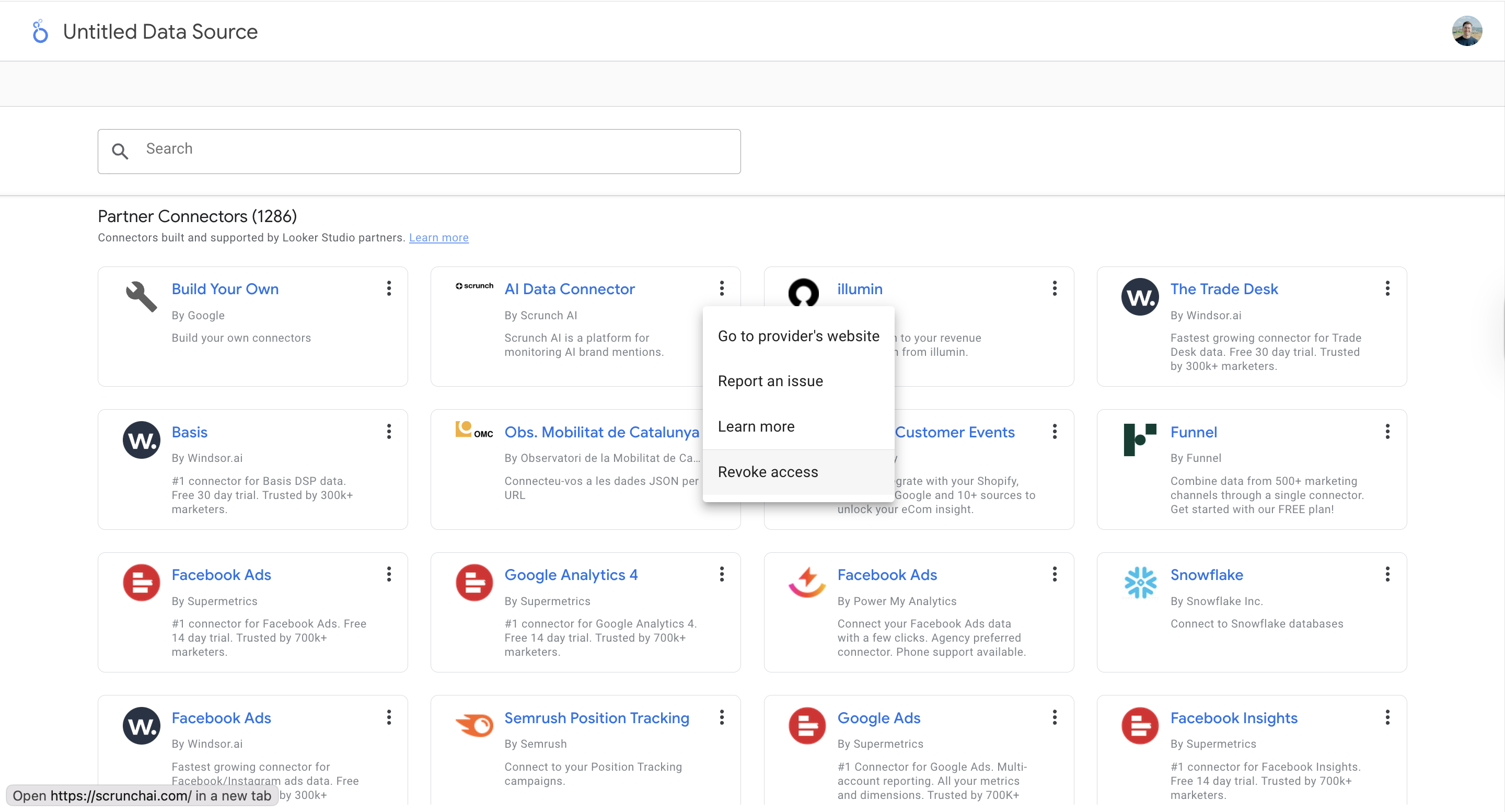
5
Reinstall the connector
Use the connector link again: https://lookerstudio.google.com/datasources/create?connectorId=AKfycbzRRK2rRqh1_ujHS313hitMb5PopzgNUS5m5ih6ohI
6
Re-enter your API key and brand ID
You now have a clean state.
Summary
Flexible Reporting
Build dashboards for brand trends, sentiment, competitors, and platform performance.
Blend with GA4
Unify Scrunch visibility metrics with site traffic and conversion data.
Template-Ready
Use our prebuilt Looker Studio template to jumpstart reporting.