> ## Documentation Index
> Fetch the complete documentation index at: https://developers.scrunch.com/llms.txt
> Use this file to discover all available pages before exploring further.
# Provision an API key
> Create, scope, and rotate Scrunch API keys at the organization level to authenticate Query, Responses, Configuration, and Agent Traffic requests.
Scrunch API keys authenticate your requests and define which brands and operations your integration can access. Only organization admins can create or manage API keys.
API keys are shown **once** at creation time. Be sure to copy and store them securely.
## Plan Requirements
API key creation is available on the **Agency** and **Enterprise** plans. If your organization is on a different plan, the **New API Key** button is disabled and you'll see an upgrade prompt when attempting to create one.
If you need API access on another plan, contact [support@scrunchai.com](mailto:support@scrunchai.com) to discuss an override for your organization.
Attempts to call `POST /organizations/{organization_id}/api-keys` without the required plan capability return HTTP `402 Payment Required`.
## Where API Keys Live
API keys are managed at the organization level.
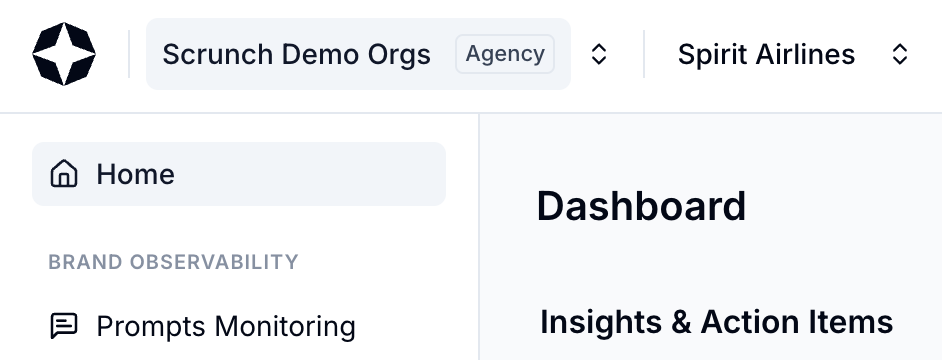
You can find them by clicking your **organization name** in the top-left corner of the Scrunch dashboard, then selecting **API Keys**.
This area is available only to organization admins and is also where you manage brands and archival operations.
## Create an API Key
Complete these steps in your Scrunch UI to provision an API Key (`$SCRUNCH_API_TOKEN`).
Click your **organization name** in the top-left corner of the Scrunch dashboard.
 Select **API Keys** from the organization menu.
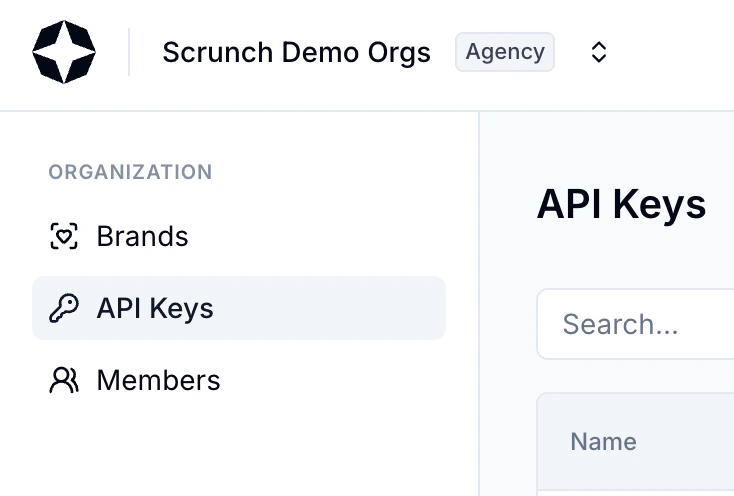 Click **+ New API Key**.
Scrunch supports several operational scopes:
* Query (retrieve analytics and metrics)
* Configure (update brand configuration, prompts, etc.)
* Create Brand (programmatically create brands)
Choose the minimal scope required for your integration.
Click **+ New API Key**.
Scrunch supports several operational scopes:
* Query (retrieve analytics and metrics)
* Configure (update brand configuration, prompts, etc.)
* Create Brand (programmatically create brands)
Choose the minimal scope required for your integration.
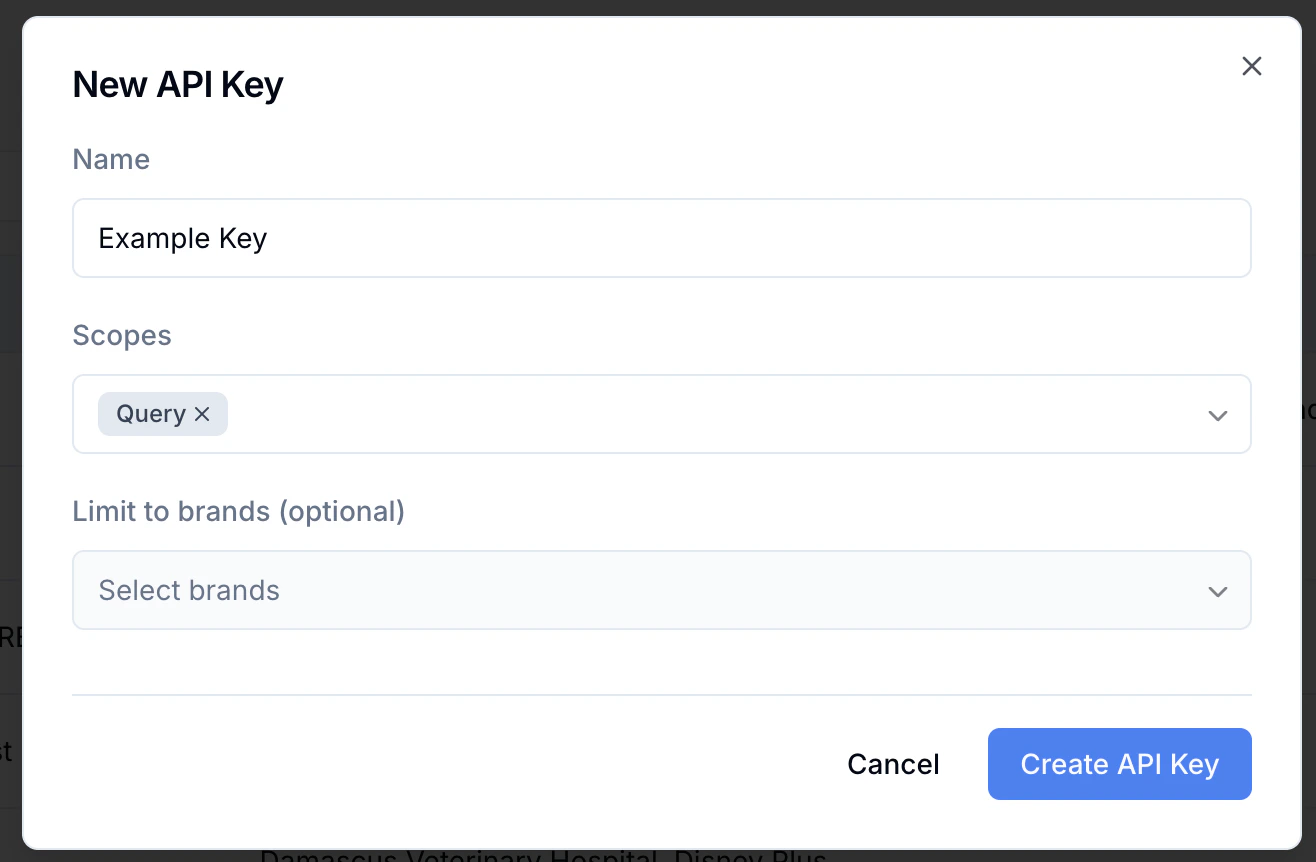 You may scope the key to:
* **Specific brand(s)** (recommended for client-facing reporting)
* **All brands** (recommended for internal tooling or ETL pipelines)
Scrunch displays the key **once**. Copy it immediately and store it securely.
## Use Your API Key
Include your key as a Bearer token in the `Authorization` header.
```bash theme={null}
export SCRUNCH_API_TOKEN="your-key"
curl -H "Authorization: Bearer $SCRUNCH_API_TOKEN" \
https://api.scrunchai.com/v1/brands
```
## Best Practices
Limit access when integrating with client-facing dashboards or BI tools.
Use for internal workflows only (e.g., multi-brand ETL, automation).
Especially important for deployments or CI environments.
Keeps your organization clean and prevents accidental access.
## Troubleshooting
If you don't see the **API Keys** tab, you are likely not an organization admin. Contact your Scrunch admin or [support@scrunchai.com](mailto:support@scrunchai.com).
If a key cannot access a brand:
* Verify the key's scope includes that brand
* Check that the brand has not been archived
You may scope the key to:
* **Specific brand(s)** (recommended for client-facing reporting)
* **All brands** (recommended for internal tooling or ETL pipelines)
Scrunch displays the key **once**. Copy it immediately and store it securely.
## Use Your API Key
Include your key as a Bearer token in the `Authorization` header.
```bash theme={null}
export SCRUNCH_API_TOKEN="your-key"
curl -H "Authorization: Bearer $SCRUNCH_API_TOKEN" \
https://api.scrunchai.com/v1/brands
```
## Best Practices
Limit access when integrating with client-facing dashboards or BI tools.
Use for internal workflows only (e.g., multi-brand ETL, automation).
Especially important for deployments or CI environments.
Keeps your organization clean and prevents accidental access.
## Troubleshooting
If you don't see the **API Keys** tab, you are likely not an organization admin. Contact your Scrunch admin or [support@scrunchai.com](mailto:support@scrunchai.com).
If a key cannot access a brand:
* Verify the key's scope includes that brand
* Check that the brand has not been archived